
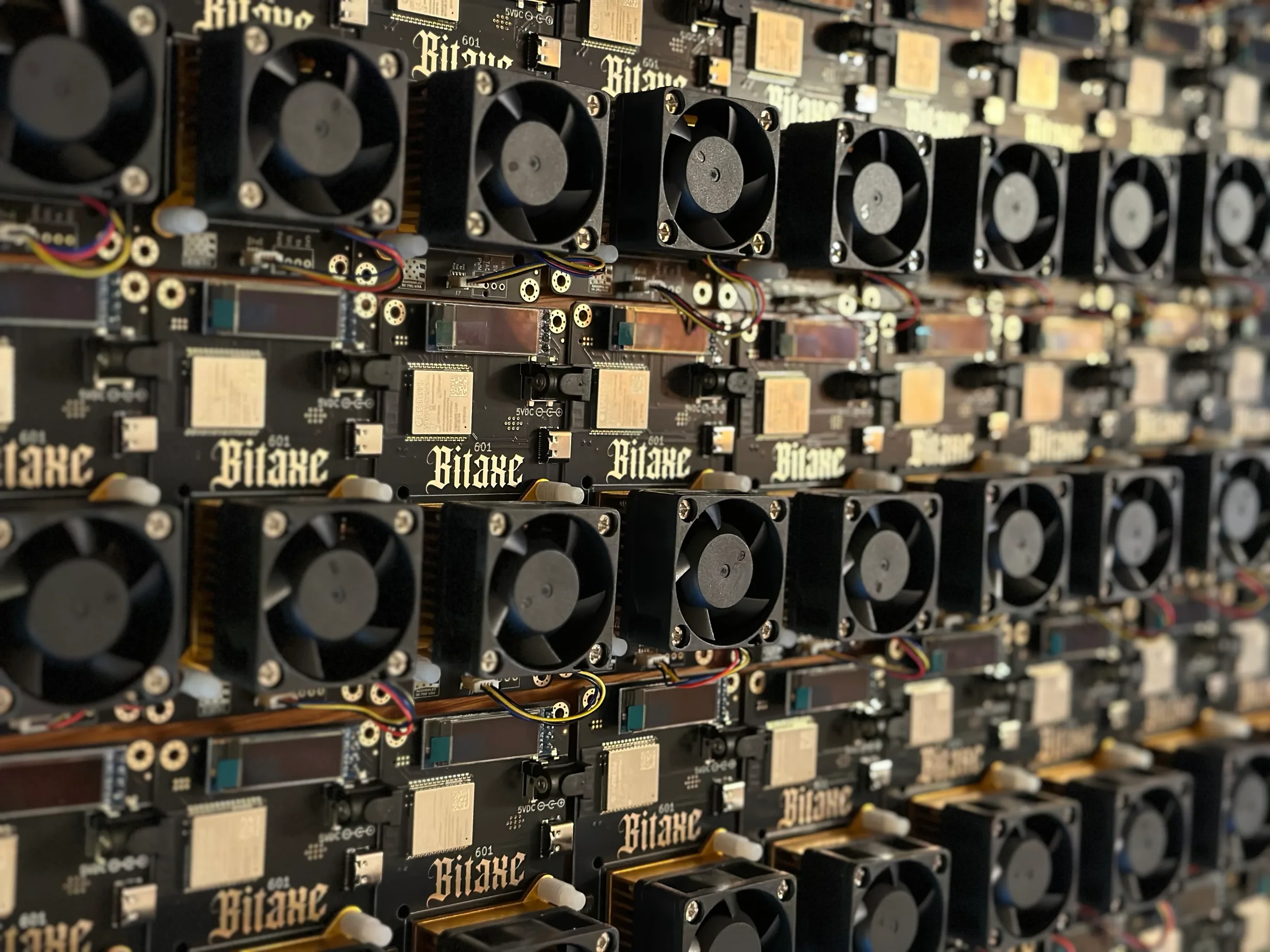
Bitaxe & NerdQaxe++ Setup Guide (Australia)
Get hashing on AU-CKPool in ~10 minutes
If you’ve just received your miner, this page walks you through the simplest, lowest-friction setup for Australians: connecting your Bitaxe or NerdQaxe++ to AU-CKPool (ausolo.ckpool.org).
AU-CKPool is a “solo pool” (you still mine solo, but the pool handles the stratum connection). If your miner finds a block, the payout goes to the Bitcoin address you enter, minus the pool’s fee.
-Want the most trust-minimised setup? Mining directly to your own fully-synced node is the gold standard. AU-CKPool is the convenience option.
Please Read Before Setting Up:
The most secure and trustless way to solo mine Bitcoin is by connecting your miner directly to your own fully synced private node. This gives you full control, independent verification, and avoids relying on third-party infrastructure. If possible, mining to your own node should be seriously considered before choosing any external option.
AU-CKPool is a convenient alternative for miners who want an easier setup, and it still allows true solo mining at low latency for australians. If you find a block, you receive the entire reward—however, AU-CKPool charges a 2% fee, and users should be aware of this when choosing their setup.
Before starting, take time to understand how Bitcoin mining works, the differences between pool mining and solo mining, and how solo pools operate. A basic understanding ensures you’re mining safely and making the right choice for your goals.
Before you start:
You will need:
A stable internet connection (home Wi-Fi)
A phone or laptop to do the initial setup
A Bitcoin wallet address you control (you will paste this into the miner)
Two common gotchas:
These miners typically require 2.4 GHz Wi-Fi (not 5 GHz).
If you type the wallet address wrong, you can’t “undo” it. Double-check it before you save.
Internal links to include near here:
Solo Mining (your education page)
Handy Calculators / Solar Mining Calculator
(Those exist in your nav already, so link them prominently.)
Step 1 — Pick your device
Option A: Bitaxe (AxeOS)
This is what the Bitaxe setup flow looks like in simple terms; The miner broadcasts a temporary Wi-Fi network, you join it, then use the local setup page to enter your Bitcoin wallet details and pool connection settings.
Power it on
Plug in the Bitaxe and wait for the screen to show a Wi-Fi network name (something like Bitaxe_XXXX).
Join the Bitaxe Wi-Fi
On your phone/laptop, connect to that Wi-Fi network.
Open the setup page
Open your browser and go to: http://192.168.4.1
Connect the Bitaxe to your home Wi-Fi
In the Bitaxe web portal:
- enter your home Wi-Fi name + password
- make sure it’s 2.4 GHz
- save, then restart the miner
Enter AU-CKPool settings (solo)
In the Pool / Mining settings, enter:
- Pool (host): ausolo.ckpool.org
- Port: 3333
- Username: your Bitcoin address (you can add a worker name likeYourAddress.bitaxe1)
- Password: x (ignored)These values are confirmed by the pool operator’s own instructions.
Check that it’s working
Once it’s connected and hashing:
the Bitaxe screen should show activity
you can also open ausolostats.ckpool.org and then paste your BTC address to view stats, If you see accepted shares increasing over time, you’re good.
Option B: NerdQaxe++ (ESP-Miner / NerdQaxe ecosystem)
The NerdQaxe++ setup is very similar in spirit: first boot creates a temporary Wi-Fi setup portal, then you switch it onto your home Wi-Fi, then you enter pool + wallet details.
Power it on
Plug it in and wait for it to boot fully.
Join the NerdQaxe++ setup Wi-Fi
On first boot, it typically creates a Wi-Fi network (often shown like Nerdaxe_XXXX / similar).
Connect to it from your phone/laptop.
Open the setup page
Many units redirect automatically after you connect. If not, open your browser and try the address shown on the screen (some firmwares use a local setup portal similar to other ESP-based devices).
Add your home Wi-Fi (2.4 GHz)
Enter your Wi-Fi name + password, save, and let it reboot onto your home network.
Find the miner on your network (the “IP address” step)
After it joins your Wi-Fi, you’ll access it from your normal network. here is the easiest way to find it:
The IP shown is displayed on the NerdQaxe++ screen, simply put this ip into your browser to access the device dashboard.
Check your router’s connected devices list for “NerdQaxe / ESP / Miner” or something similar.
Enter AU-CKPool settings
In the Mining / Pool settings, use the same AU-CKPool values:
- Host: ausolo.ckpool.org
- Port: 3333
- Username: your Bitcoin address (optional worker suffix is fine)
- Password: x
Again: this is exactly how the pool expects miners to connect.
Check stats
Once it’s connected and hashing:
the NerdQaxe++ screen should show activity
you can also open ausolostats.ckpool.org and then paste your BTC address to view stats, If you see accepted shares increasing over time, you’re good.